 | Welcome to Pocket PE! In this part 2 of 3 tutorial, we’ll walk through how to preview a Lesson in the Pocket PE app. |
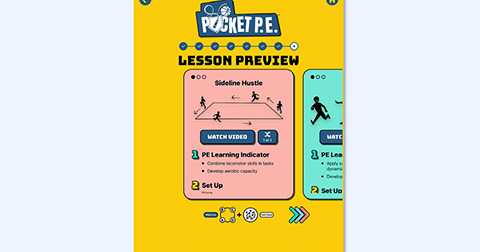 | After building your lesson, The Lesson Preview cards are designed to help aid you in your planning so you can teach effectively. |
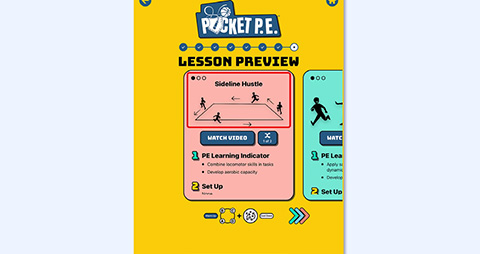 | On each card, you’ll see the activity title, a helpful illustration, and three circles on the top left of the card. These indicate the progression level of the activity, one circle filled in for each level. |
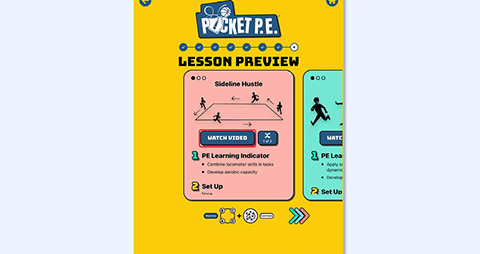 | To see a demonstration, tap the Watch Video button on any card. |
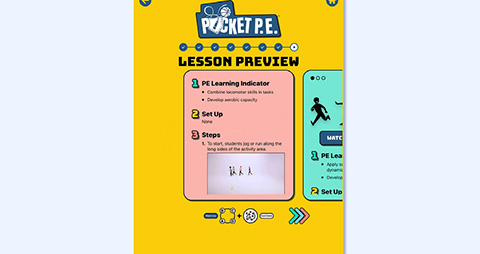 | Scroll down to see the PE Learning Indicator, Set Up instructions, and activity Steps, each with an image. |
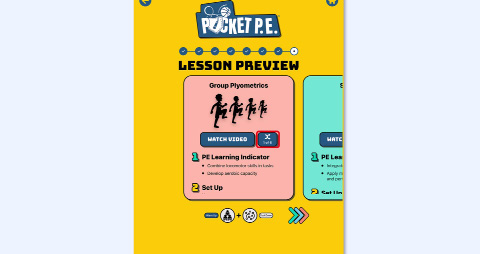 | Don’t like an activity Pocket PE generated? Click the shuffle button to select a new one. |
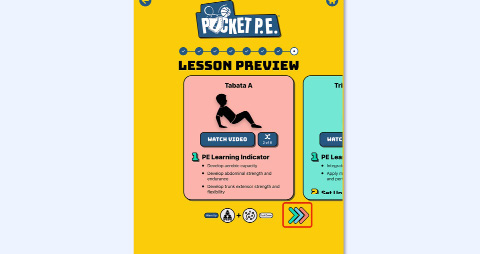 | To preview the next activity, tap the arrows below the activity card. |
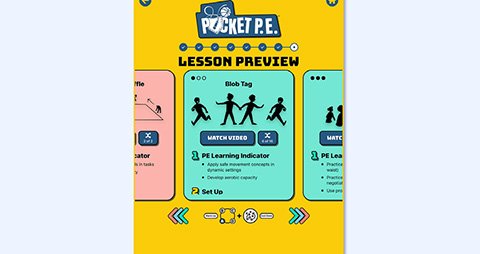 | The Warm-Up Card is Pink, Main Activity Cards are teal and the final card is the Cool Down, shown in light blue. |
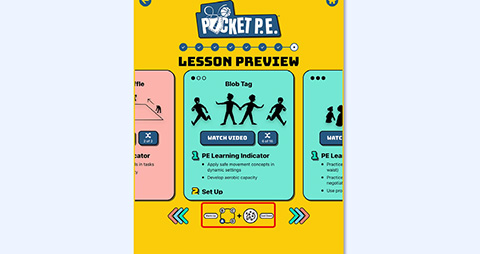 | You’ll notice a few icons under the activity cards that highlight in blue as you move through the cards. That’s to let you know where each activity card fits in the lesson. Currently this activity is part of the circuit section of the Lesson. |
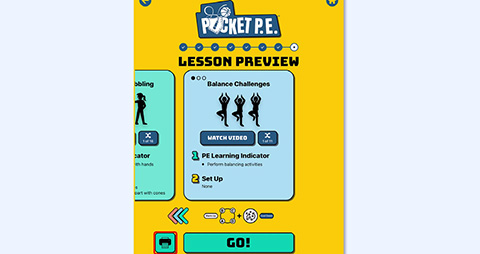 | Once you’ve reviewed the lesson, you can Print the lesson as Activity Cards. These activity cards are helpful for sharing lesson plans with your substitute teachers or printing visuals. |
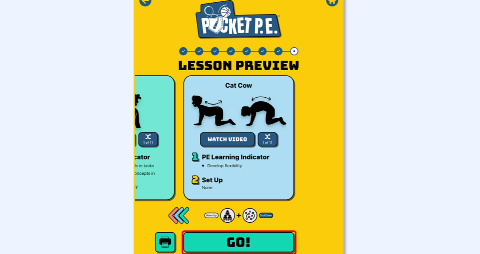 | And that’s it! You’ve built your lesson and explored the preview—now it’s time to lead with confidence using Pocket PE’s Live Facilitation Mode. Click Go to get started. |
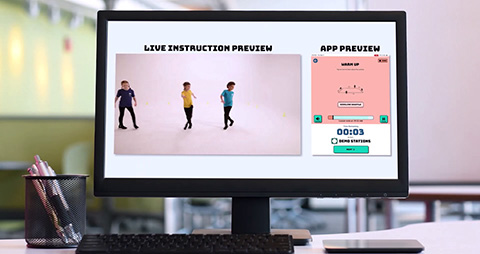 | Be sure to watch Part 3 of this video series to learn more. |
Was this article helpful?
That’s Great!
Thank you for your feedback
Sorry! We couldn't be helpful
Thank you for your feedback
Feedback sent
We appreciate your effort and will try to fix the article