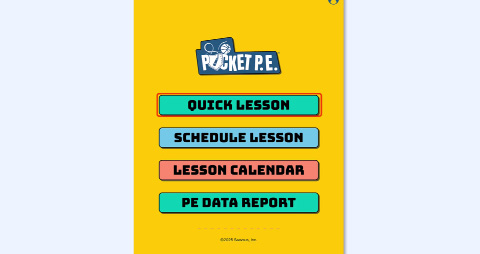
 | Welcome to Pocket PE! In this part 1 of 3 tutorial, we’ll walk through how to generate a Quick Lesson. Let’s start by tapping on Quick Lesson. |
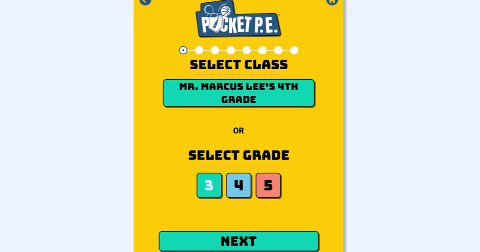 | Now, choose which class or grade level the lesson is for. Since the app is synced with your Pocket PE web portal dashboard, your class will already be available. You can keep your class selected or choose a grade level instead. Once finished, tap Next. |
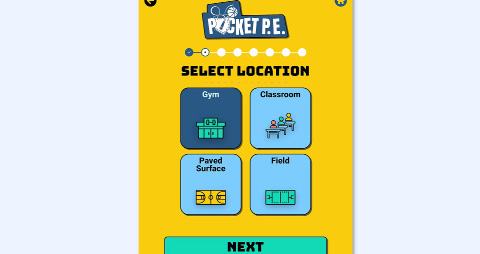 | On the next screen, enter your lesson location. |
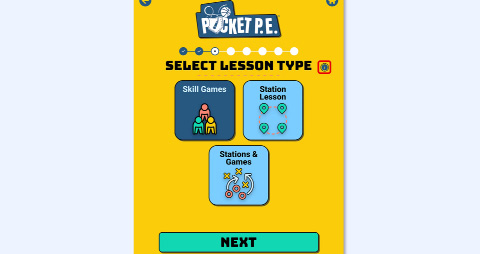 | Then select the lesson type. |
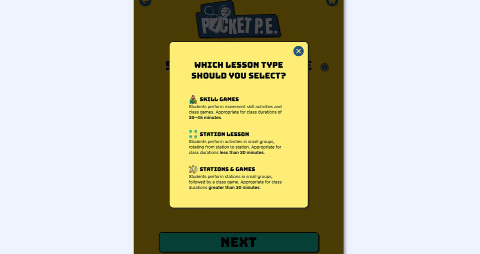 | If you’re unsure which lesson type best fits for you, click the tooltip icon to learn more about each lesson type. |
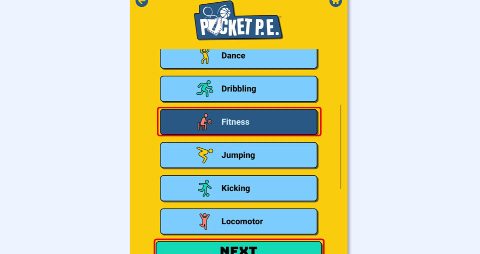 | Then choose the primary movement skill you’d like students to do. Choose ‘Surprise Me’ if you’d like the app to pick a movement skill for you. If a PE specialist has recommended a specific skill to focus on, go ahead and select that one instead. |
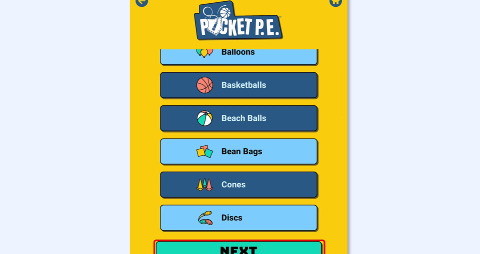 | Then choose equipment that supports the movement skill you selected in the previous step to ensure alignment with your activity goals. |
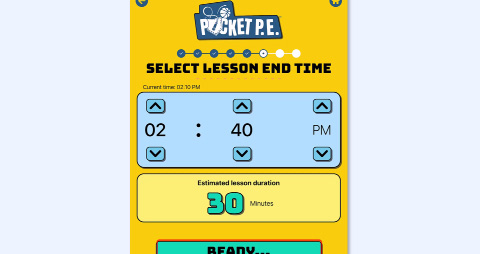 | Now we’ll enter the end time for the lesson. I’ll set it for 30 minutes from now. |
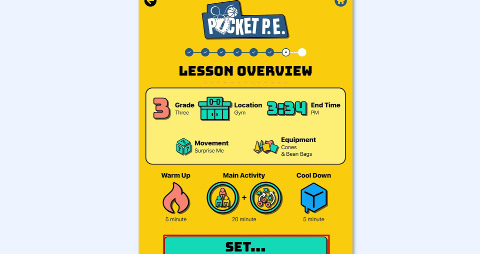
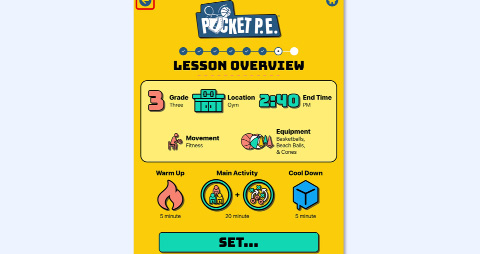 | A lesson overview will appear, showing all your selections. Review the details and use the back arrow if you need to make changes. |
 | |
 | Watch our next video in this three-part series to learn more. |
 | Thanks for watching, and happy teaching! |
Was this article helpful?
That’s Great!
Thank you for your feedback
Sorry! We couldn't be helpful
Thank you for your feedback
Feedback sent
We appreciate your effort and will try to fix the article